Listening Help:
Windows / Mac / Linux:
To listen to KPIG's stream, you would use your web browser with our embedded player. You could also use Windows Media Player or VLC as a standalone player.
Mobile / SmartPhones:
Android:
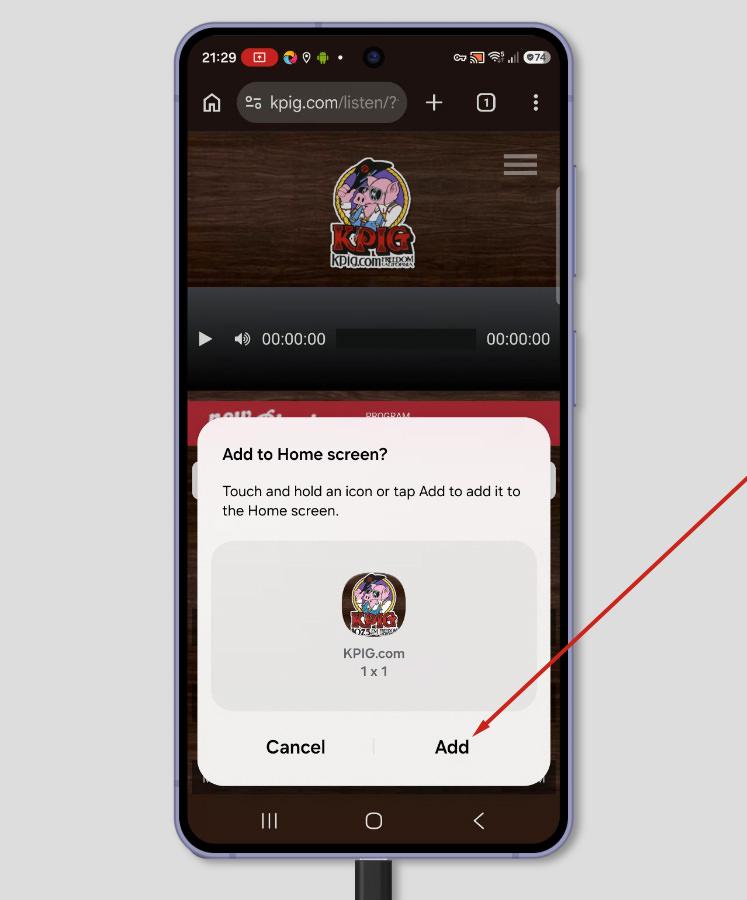
To add the KPIG player to your device's Home Screen:
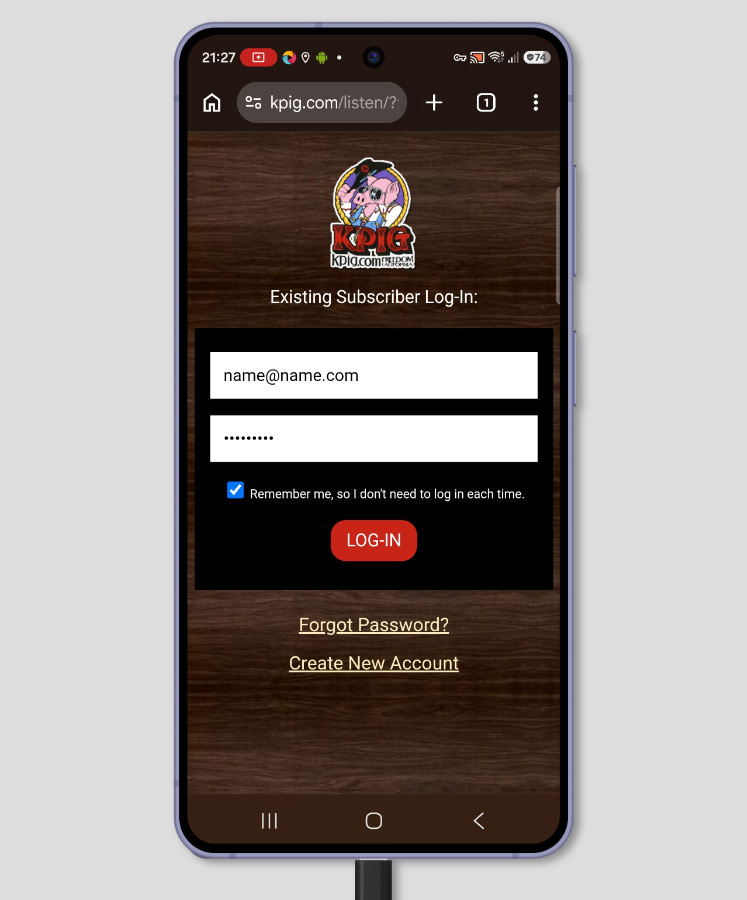
- Log-in to player.kpig.com
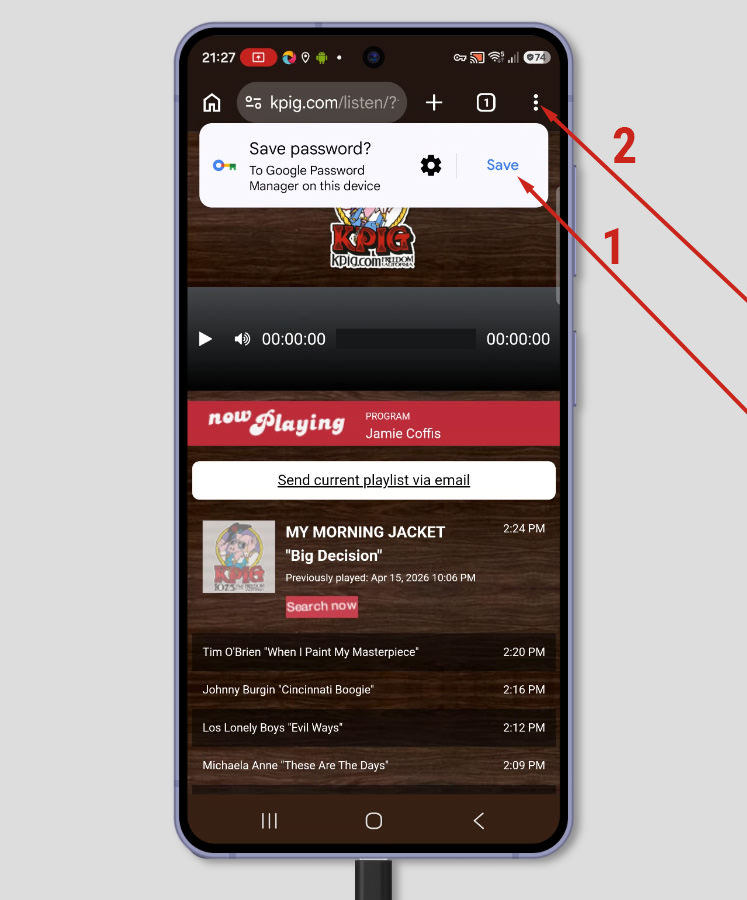
- Optionally, save your password, then tap the "three dots" context menu.
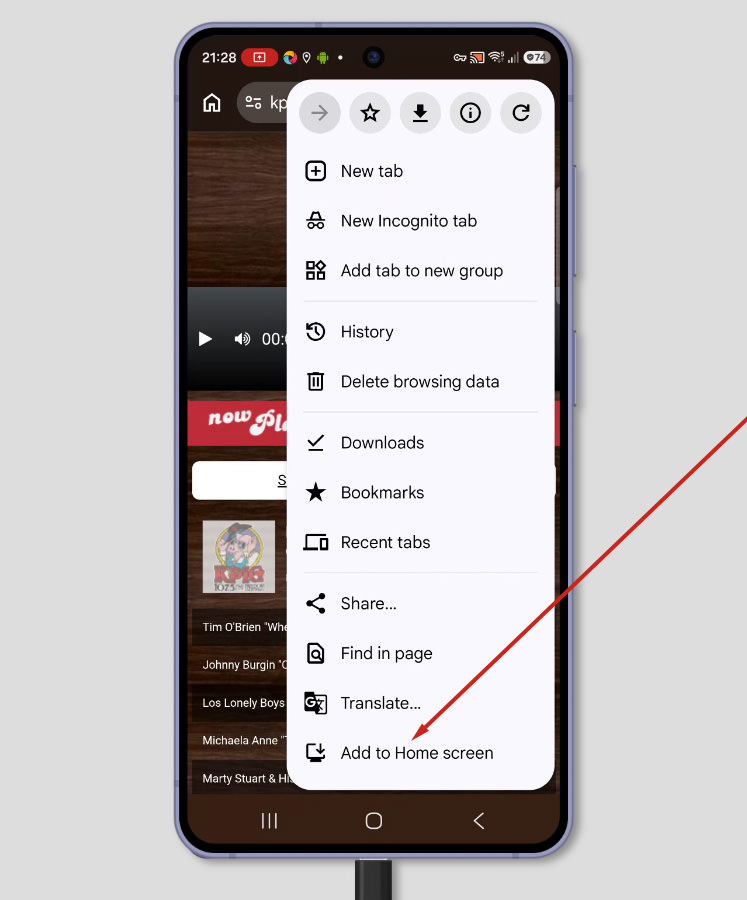
- Tap "Add to Home screen".
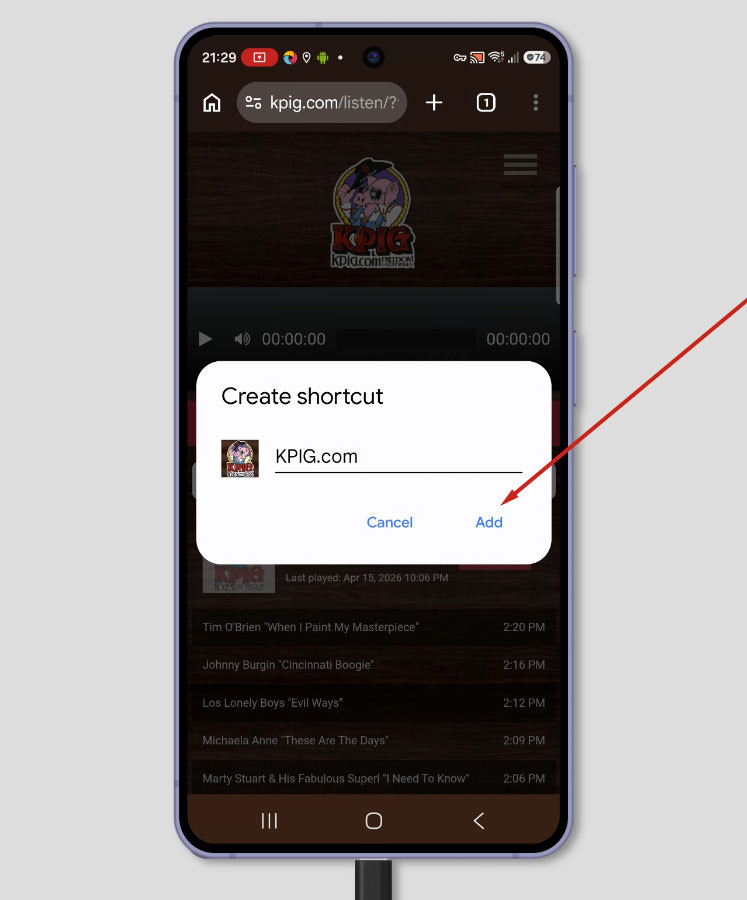
- Tap "Add".
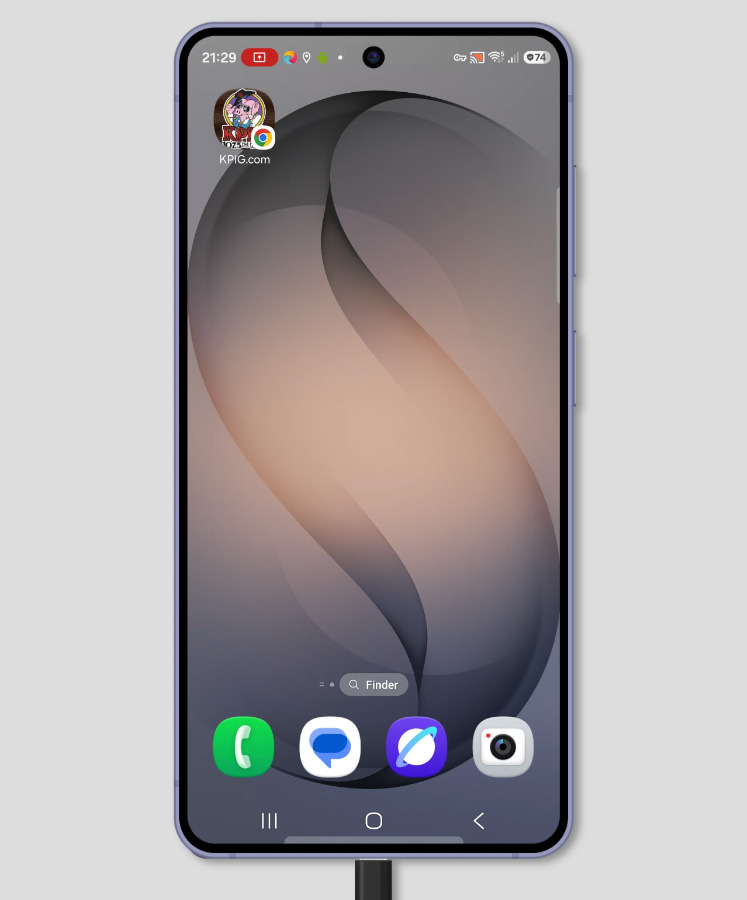
- Tap "Add" again.
- You should now see the KPIG.com icon on your device's home screen.
iOS (iPhone/iPad):
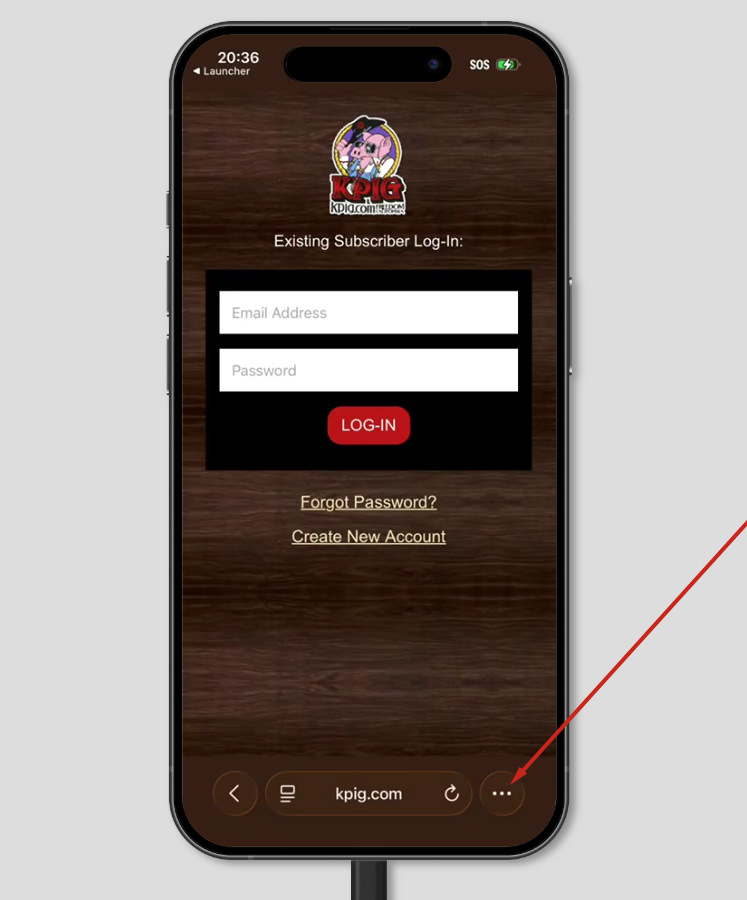
To add the KPIG player to your device's Home Screen:
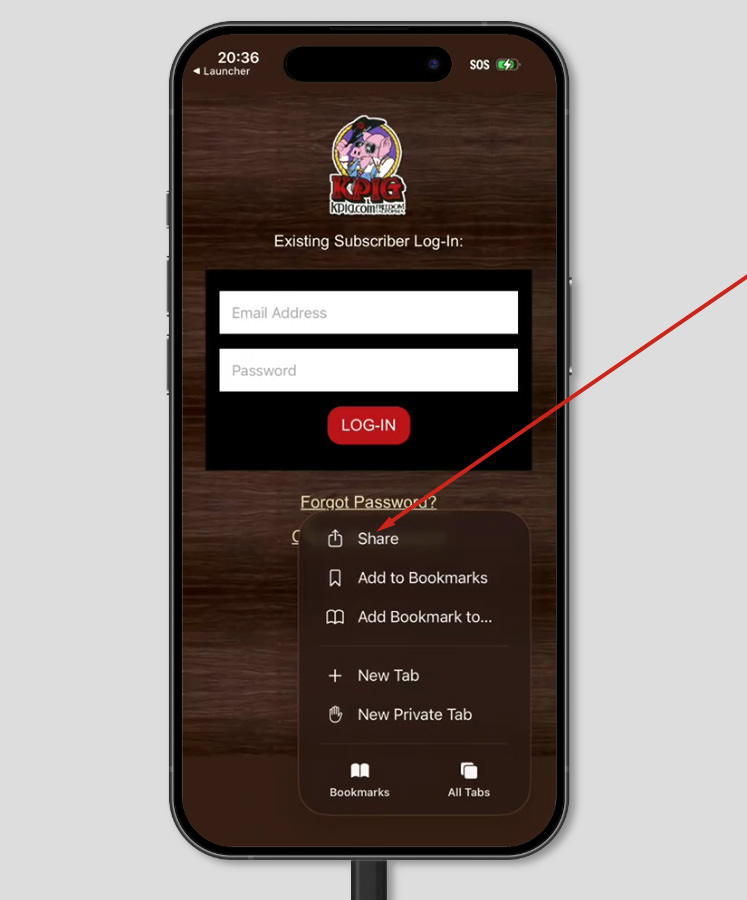
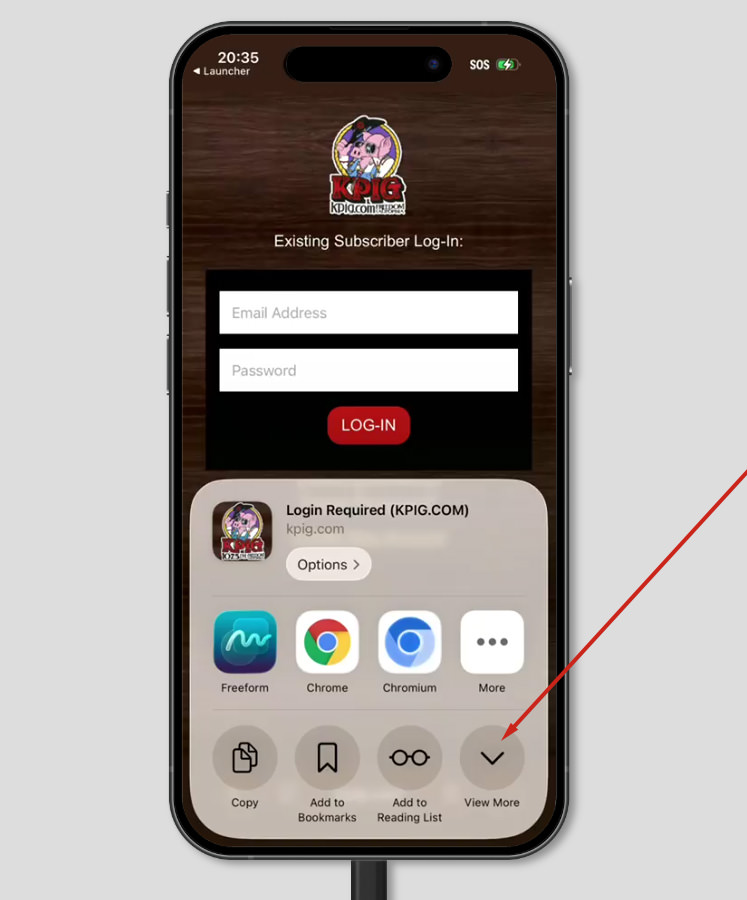
- Click the "three dots" context menu icon.
- Tap "Share".
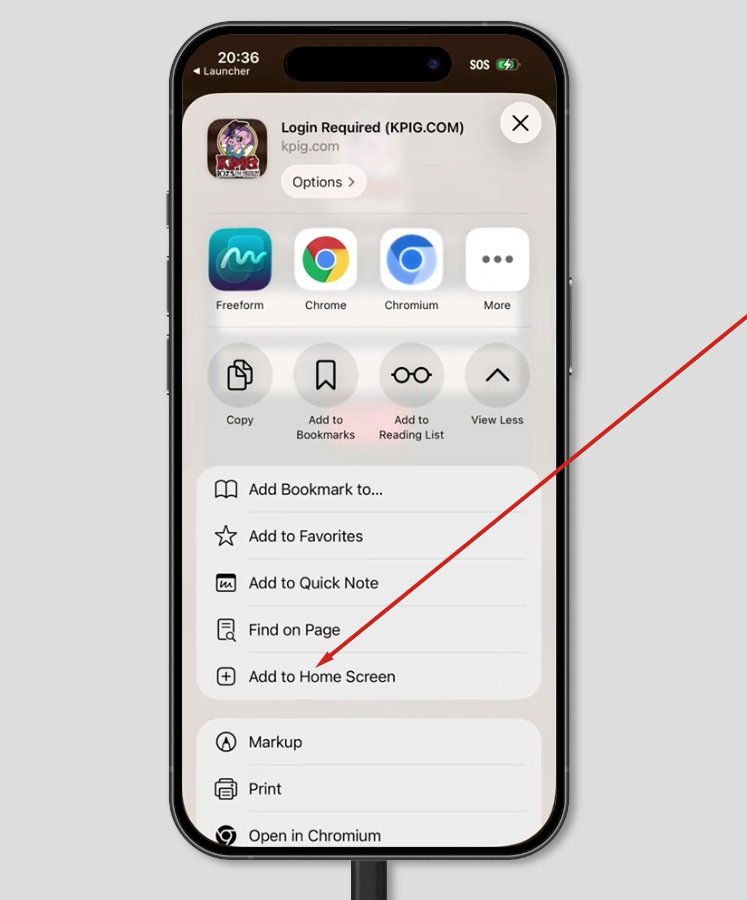
- Tap "View More".
- Tap "Add to Home Screen".
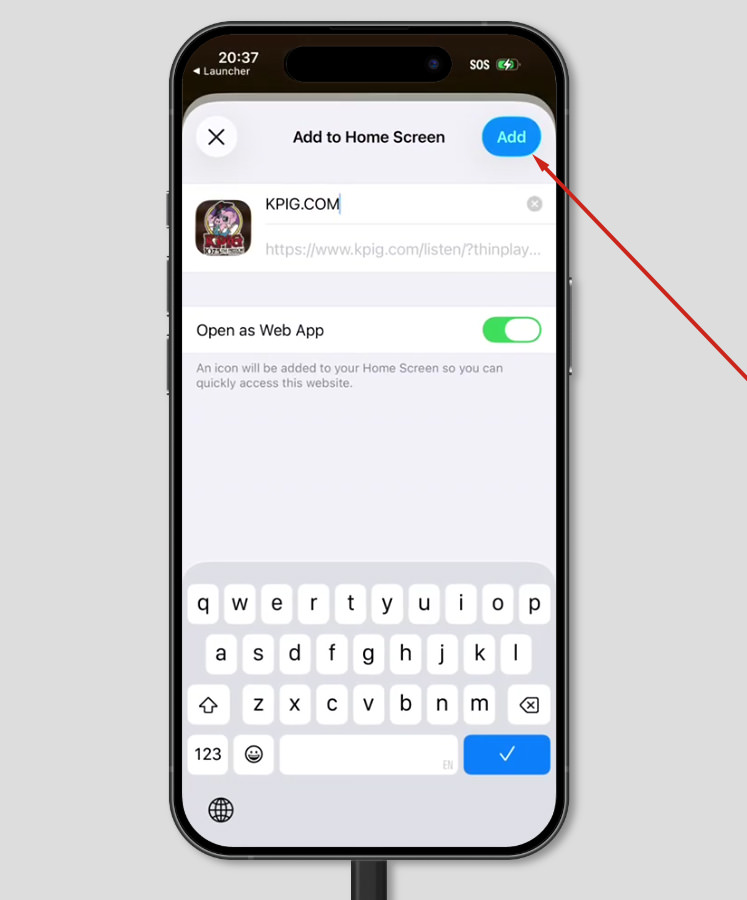
- Tap the "Add" button.
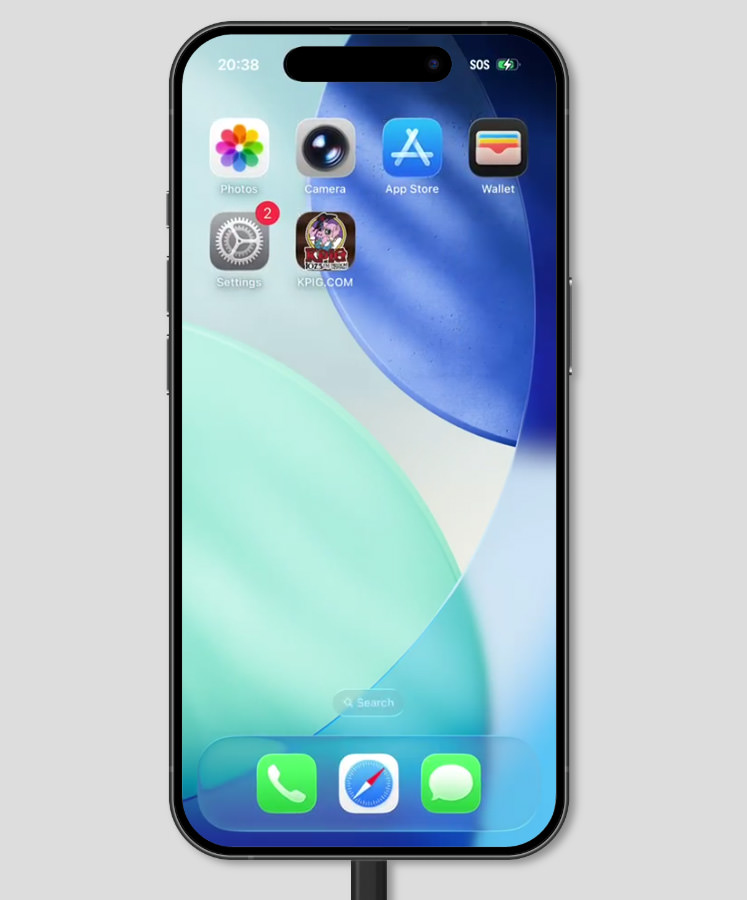
- You will now see the KPIG.com icon on your device's home screen.
How to save your password in Safari:
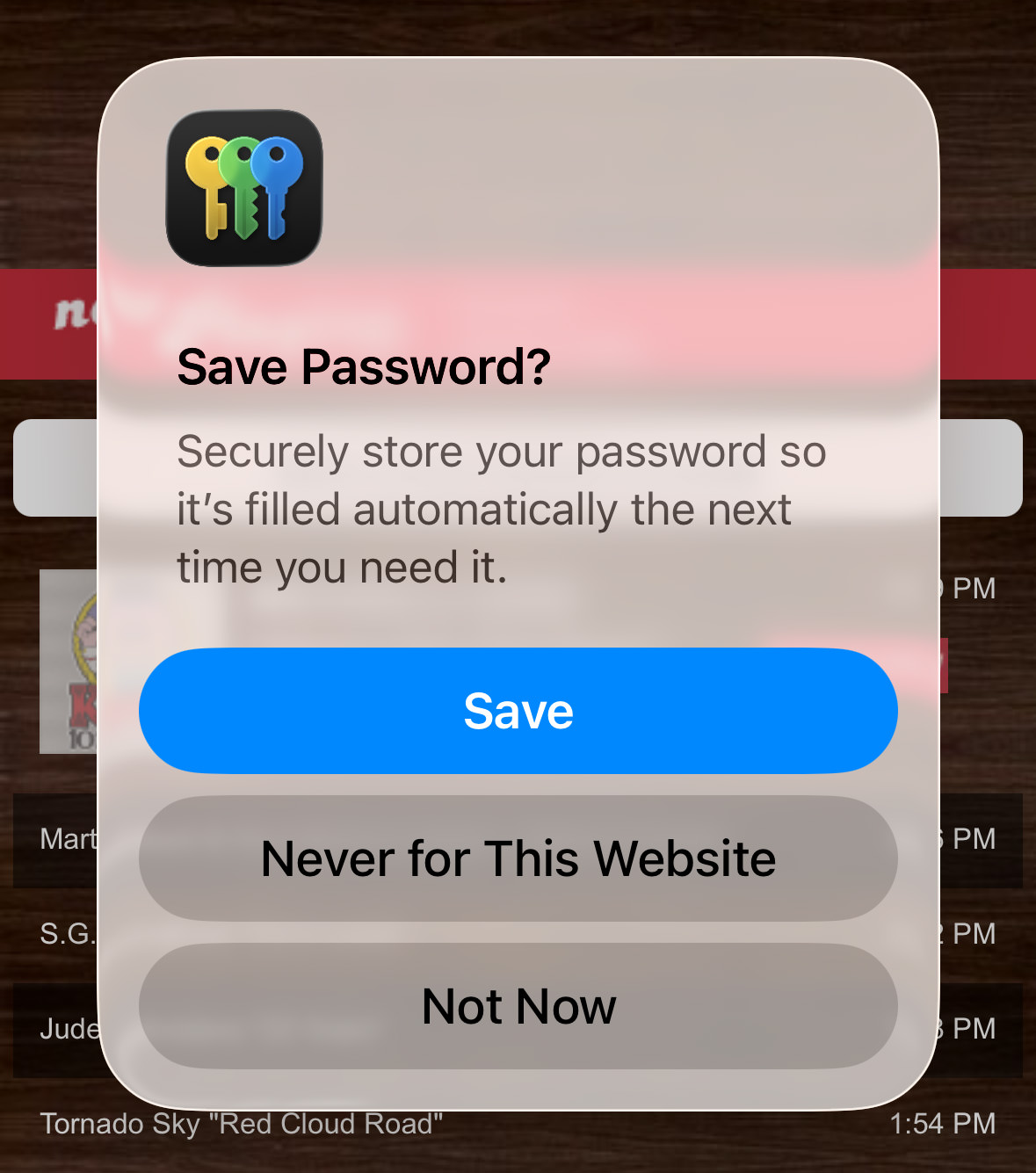
- After logging-in, you should see the screen below.
- Click "Save"
- In the future, you should be prompted to use your saved credential.
Internet Radios:
Logitech Squeezebox: Here's are instructions to listen to the KPIG stream on your Squeezebox radio:
Adding a favorite radio station that's not in one of the guides: It's easy to use Squeezebox Server to add it if you know the URL for the stream.
- You can access your custom KPIG direct stream URL at https://www.kpig.com/listen/ after logging-in.
- To add a radio station to your list of favorites on Squeezebox Server, go to the MySqueezebox site, click Favorites, select a name for the stream and enter the URL.
- Contact Logitech support if you need assistance.
Grace Digital: Here's are instructions to listen to the KPIG stream on your Grace Digital radio:
If you want to listen to a station or podcast that is not in the Reciva stations list, and you know the streaming url for the station, then you can add it to your own personal list of stations.
- On the Grace website, please log in and then click on "Manage My Stuff", and then click on "My Streams" or "My Podcasts".
- From this section of the website you should be able to search for your personal audio content provided you know the streaming url.
- Contact Grace Digital support if you need assistance.
Reciva compatible radios: Here are instructions for getting the KPIG online stream working with Reciva:
- Log-in to your KPIG.com account at https://www.kpig.com/listen/, and copy the URL, as listed under "Direct Link to Stream"
- Go to the Reciva web site and login to your account.
- Then go to the "My Streams" link. From here you can add a new stream.
- Enter "KPIG" and then add paste your custom URL (from Step 1)
- You Should then be able to access "KPIG" as a station on your radio (underneath the Reciva option).
Roku Soundbridge: Here's are instructions to listen to the KPIG stream on your Roku Soundbridge radio:
You should be able to enter your custom subscriber URL into your radio as a "custom station".
Sometimes, you may want to play an Internet station that's not listed in the Radio Roku database. To do this, you can use one of your SoundBridge's 18 Preset memory slots to remember the station's URL and make it available to be played. There are three methods for doing this:
Method 3: SoundBridge/SoundBridge Radio Web Configuration Pages
You can directly enter the URL of a station into the web page built in to your SoundBridge player. Follow these steps:
- Obtain the IP address of the SoundBridge by going to System Configuration > Show WiFi Status or System Configuration > Show Wired Ethernet Status (depending on what model and how you have it set up) from the SoundBridge main menu.
- Enter this IP address into a web browser on your computer to bring up the SoundBridge configuration pages.
- Select the Internet Radio link at the top of the SoundBridge configuration page.
- Now, enter the URLs of the stations you wish to access, replacing the Preset stations. (Copy and paste from https://www.kpig.com/listen/ after logging-in, listed under "Direct URL".) You can also change the name that will appear on the SoundBridge for each station.
- When you are done, click the Update Radio Stations button at the bottom of the page.
Sonos-powered Radios: Here's are instructions to listen to the KPIG stream on your Sonos-powered radio:
According to the documentation: You can use the Sonos App for Mac or PC to add a radio station that does not appear in the radio guide. You must know the streaming URL. The station will then be added to your Favorites list.
- Log-in to your KPIG.com account at https://www.kpig.com/listen/, and copy the URL, as listed under "Direct Link to Stream"
- Select “Manage” and “Add Radio Station.”
- Paste in the streaming URL of the station you wish to add, and type "KPIG" for the name of the station.
- From the Sonos music menu, navigate to Radio by TuneIn > My Radio Stations where the newly added station will be listed.
On a Mac, the “Manage” menu can be found in the toolbar in the top left corner of the screen. On a PC, the “Manage” menu is found at the top left of the Sonos application.
Other streaming radios/devices:
- Contact the user support for your device. Let them know you have a custom streaming link (URL) and ask for instructions on how to enter the custom link into your radio or device.
- You can find your custom streaming link by logging-in to your KPIG.com account at https://www.kpig.com/listen/, and copy any of the URLs, as listed under "Direct Link to Stream".